My first (and last) Linux ricing with Hyprland
2026-03-17
Linux DesignAlthough I was born in the millenials generation, deep down I am a big boomer. I never really cared about the aesthetics of my computer’s desktop. In fact, for a long time I just used a completely black wallpaper, with zero icons. I used a stock GNOME for many years with minimal changes over the defaults and I have always been happy with it (I still think GNOME is the best DE). So, when I heard of Linux ricing, I had to look up what it meant, and honestly I wasn’t that interested. However, one day last year a bug in the GNOME login manager prevented me to start my beautiful plain desktop. Curious to try something else, and since some of my friends had recently started using Hyprland, I decided to give it a try. I had seen all the awesome designs, but I couldn’t be bothered to spend time on the appearance, so I just left the default wallpaper, grabbed the first waybar configuration I found, and that was it. The GNOME bug was fixed after one or two days, but at that point I was simply too lazy to switch back.
From many points of view, the experience was much worse than my former GNOME environment, but there were two things that I admired about Hyprland: the keyboard-based workflow, enhaced by the tiling layouts; and the fact that you just get a window manager which is highly configurable and composable with other tools, as opposed to a pre-designed holistic experience. Tiling windows was something I didn’t know I needed until I tried it. Somehow it makes it feel easier to jump between windows, split the screen, and combine views. The Unix phylosophy of “do one thing and do it well” is fully apparent in the Hypr ecosystem, since one is expected to install the components one by one. Do you want a task bar? Hyprland doesn’t provide one, you have to use a third party tool. Notifications not showing? Install a separate tool. Same thing for the application launcher. Somehow, many individual components of high quality have appeared on the scene, making it possible to build a functional desktop environment from scratch. All these components are extremely customizable, often with CSS. Given enough patience and skill, one can achieve amazing results.
Patience and skill are something I don’t really have in high supply, so why did I decide to embark on such a mission? Mostly, just for fun. Let me explain. Last year I borrowed a MacBook Air and used it as daily driver for several months. Naturally, installing a separate Linux partition on that Mac was the first thing I did (thanks, Asahi!). However, due to curiosity for MacOS, longer battery life, and the ability to connect an external display (which didn’t work on Linux), I ended up using macOS most of the time, in spite of the miserable experience of having to deal with all its bugs. I still don’t get the hype about Macs, but I must admit that their UI is nicely designed. The thing I hated most was how pre-packaged the experience felt: you get what Apple decides that you should get, and you are not allowed to dislike it or change it. Sure, the settings menu seems to offer lots of customzation options, but really, when they work, they don’t change much at all. So, after this experience, I had the need to cleanse my soul. I thought it would be funny to make Linux look like my former macOS. Some people say I have a weird, twisted sense of humor, but hey, that’s my problem.
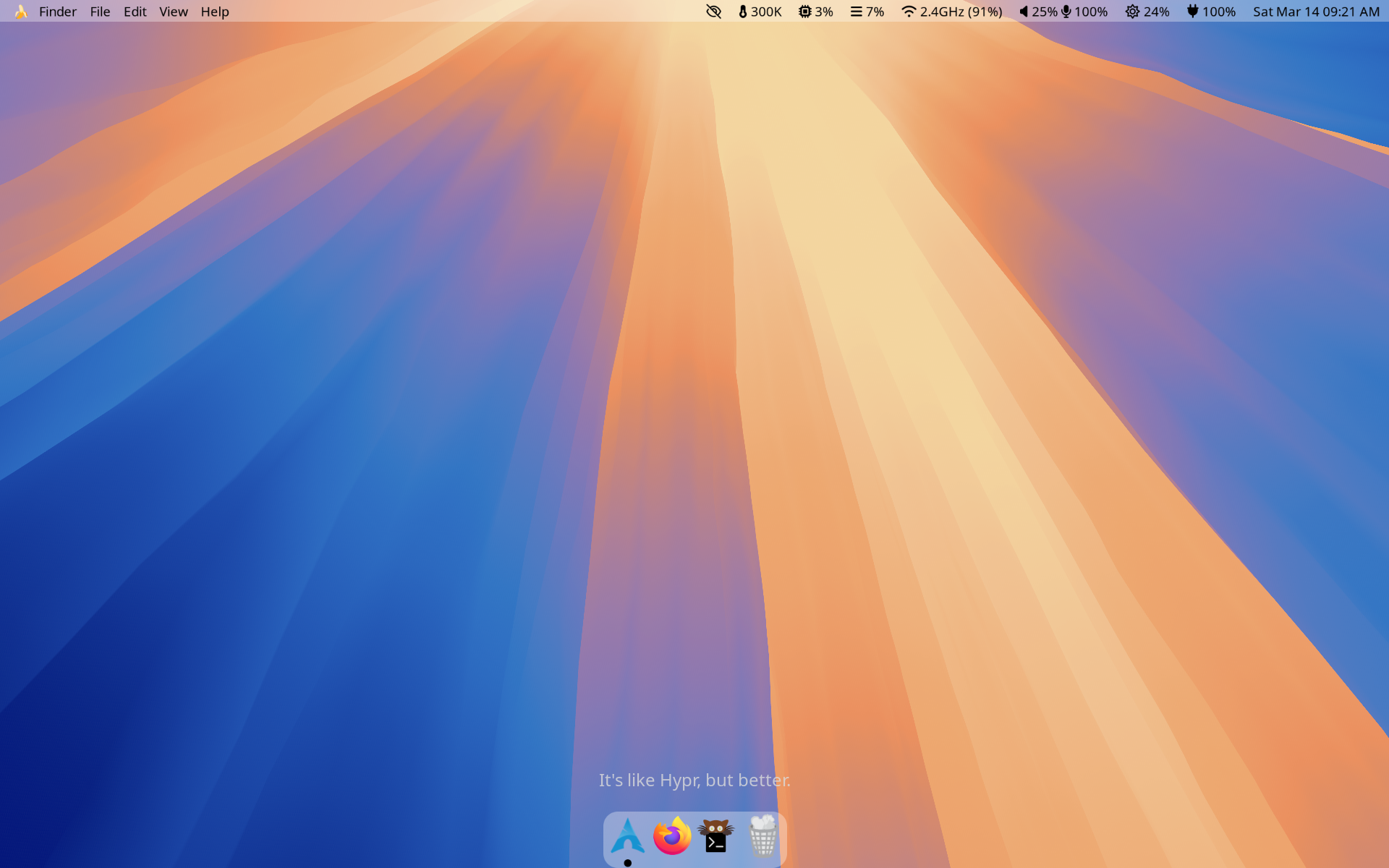
The most important difference is that the Apple logo was replaced by a banana. It’s not that I have something against apples, but personally I think bananas are the legitimate kings of fruit. The dotfiles are available on GitHub, and I also started a discussion on Reddit.
Waybar
The key to achieving the macOS looks and feel was Waybar, which provides the status bars. I was very much inspired by another project, waybar-macos-sequoia, but made some tweaks based on my personal preference and needs. I’ll just describe my current setup here, but many of the ideas are from waybar-macos-sequoia :)
Top bar, left side
- The Banana logo
- Opens the power menu with shutdown, suspend, and hybernate options
- Finder menu
- Shows the title of the currently focused application, or “Finder” if no application is focused
- File menu
- Opens the file manager; I use (rarely) Nemo from the Cinnamon desktop
- Edit menu
- Opens the document viewer (papers)
- View menu
- Opens the image viewer (loupe)
- Help menu
- Opens the Arch Wiki
Top bar, right side
I spent a lot of time poring over the Waybar Wiki.
- Idle inhibitor
- To this day, I still have no idea whether it works or not; it is a remnant of waybar-macos-sequoia.
- Temperature indicator
- Shows the temperature in Kelvin
- CPU indicator
- The tooltip cannot be customized yet, but I’m eagerly waiting for this feature
- Ram indicator
- The tooltip shows the used and available GB of both memory and swap
- Network indicator
- Shows WiFi frequency and signal strength
- Clicking it switches to alt mode, showing network interface, IP, and netmask
- Sound indicator
- Shows speaker and mic volume
- Clicking it does nothing at the moment, but I’d like to find a good GUI
- The tooltip is also boring
- Speaker volume can be changed with fn keys
- Brightness indicator
- Brightness can be changed with fn keys
- Battery indicator
- Shows battery status (plugged or not) and percentage
- The tooltip shows the power drawn in Watts, which is usually around 13mW, and the health of the battery, including the number of cycles
- Date and time indicator
- Shows date and time
- The tooltip is a month calendar
- Clicking it switches to alt mode, where the calendar is for the full year instead of just one month
- Scrolling up or down moves the calendar backwards and forwards in time (I had to tune the smooth-scrolling-threshold to make it work nicely for me)
Bottom bar
Tweaking the style of this bar was most difficult, but I am rather satisfied now. The bar has the Arch logo as a fixed component, a taskbar showing the open application windows, and a trash bin icon as another fixed component. I wanted the fixed components because the bar looked ugly when no windows were open. Besides, the Arch logo is supposed to replace the Finder app in macOS.
- Arch logo
- Just a custom component with a static background image
- Clicking it opens an application launcher
- Replaces the Finder app in macOS
- Taskbar
- Shows all open windows
- The currently focused one has a black dot below (made with the box-shadow CSS property)
- Trash bin icon
- I should think of something to do open when I click on it
- Similar to the Arch logo, this is just a static background image
- Who needs a trash bin when I can just
rm -rf?
Hyprland & Co.
Hyprland is extremely configurable, yet minimalistic in spirit. The first time I installed it I was as confused as when I first tried to exit vim: there were all these shortcuts which I didn’t know, and the mouse was utterly useless. So it took some practice before I felt comfortable, but now, like for vim, I find the keyboard-only experience to be very effective. I set up some of my own shortcuts and aesthetic tweaks.
Copypasta
First, I use cliphist as clipboard manager. Pressing
ALT SHIFT + V opens a menu with the clipboard history, and
I can select any entry to be pasted. This trick is already officially
documented, but I added a tr -d '\n' to the
--pre-display-cmd in order to remove the newlines, because
each entry had an empty line due to a trailing '\n'. Note
that this only affects the entries in the menu: the newlines will still
be there when I paste the clipboard content.
exec-once = wl-paste --primary --watch cliphist store
bind = $mainMod SHIFT, V, exec, cliphist list | wofi --dmenu --pre-display-cmd "echo '%s' | cut -f 2 | tr -d '\n'" | cliphist decode | wl-copy
Since I am going for a macOS vibe, I couldn’t help using the
ALT key for copying and pasting. Linux already has
shortcuts, but they are inconsistent across applications. Normally, we
can use CTRL + C and CTRL + V, but in the
terminal, these keys have a different function, so we use
CTRL SHIFT + C and CTRL SHIFT + V. Thus,
remapping ALT + C to CTRL + C wouldn’t have
worked, unless I wanted to accidentally send SIGINTs to my processes.
Luckily, I found an incredible trick in this blog
post. Apparently Linux supports alternative shortcuts for copying
and pasting: CTRL + INSERT and SHIFT + INSERT.
So, I could simply add these lines to my hypr.conf:
bind = $mainMod, C, sendshortcut, CTRL, INSERT,
bind = $mainMod, V, sendshortcut, SHIFT, INSERT,
Screenshots
grim and slum work pretty well together. I
set up these shortcuts using the Print key to capture
either the full screen or a custom selection. The screenshot is then
both copied to the clipboard and saved to a file. I also get a
notification to confirm that everything worked. The vast majority of my
screenshots are used only once, so I live to save them under
/tmp, just like my browser downloads.
bind = SHIFT, Print, exec, grim - | tee /tmp/$(date +'%Y%m%d_%H%M%S').png | wl-copy && notify-send "Screenshot captured"
bind = , Print, exec, grim -g "$(slurp)" - | tee /tmp/$(date +'%Y%m%d_%H%M%S').png | wl-copy && notify-send "Screenshot captured"
Blur
In my original set up, I disabled blur effects because they can be battery-hungry, and one of my goals is to increase the lifetime of my laptop’s battery as much as possible. However, as user WesternSpy96 pointed out in Reddit, this is unacceptable if I want to be true to the macOS spirit, and this encouraged me to try and enable blur only when the laptop is plugged. There are many ways to do this, but since we can write the config file in Lua, I just set:
hl.config({
    [...]
    decoration = {
        [...]
        shadow = {
            enabled = tonumber(io.open("/sys/class/power_supply/AC/online"):read(1)), -- True if AC-powered
            [...]
        },
        blur = {
            enabled = tonumber(io.open("/sys/class/power_supply/AC/online"):read(1)), -- True if AC-powered
            [...]
        }
    },
}
The decoration:blur:enabled keyword can be either 0 or
1. Conveniently, the file /sys/class/power_supply/AC/online
is also 0 (when unplugged) or 1 (when plugged). So, I simply set the
decoration value to what’s inside that file. Note that this only checks
when Hyprland starts up, so it won’t detect when I plug or unplug the
laptop in the middle of a session.
To fix that, I created a systemd user unit that can programmatically enable or disable blur in my Hyprland sessions. It is a bit tricky because it needs to send a command to Hyprland from outside of Hyprland, but gladfully it can be done.
[Unit]
Description=Toggle Hyprland Blur (State: %i)

[Service]
Type=oneshot
# %i will be replaced by 1 or 0
ExecStart=/bin/sh -c 'for instance in `/usr/bin/hyprctl instances | sed -n \"s/^instance \(.*\):/\1/p\"`; do hyprctl --instance $$instance eval "hl.config({ decoration = { blur = { enabled = %i } } })"; done'
I made the unit as a template so that I could pass the value for
disabling or enabling blur directly in the name of the unit when I want
to run it. The way it works is that I copy this unit to
~/.config/systemd/user/hypr-blur@.service, and then I can
run it with systemctl --user start hypr-blur@0 (to disable
blur) or systemctl --user start hypr-blur@1 (to enable it).
The part after @ will be captured in the %i
placeholder inside the unit.
The unit on its own is only half of the story: I still needed a way
to call it upon plugging events. For this, I created a custom
udev rule with some help from the AI overlords:
# AC plugged in -> start hypr-blur@1.service
SUBSYSTEM=="power_supply", KERNEL=="AC", ATTR{online}=="1", RUN+="/usr/bin/systemctl --machine=edrix@.host --user start hypr-blur@1.service"

# AC unplugged -> start hypr-blur@0.service
SUBSYSTEM=="power_supply", KERNEL=="AC", ATTR{online}=="0", RUN+="/usr/bin/systemctl --machine=edrix@.host --user start hypr-blur@0.service"
I saved these lines in a file under
/etc/udev/rules.d/11-hyprland.rules. Now whenever I am
plugged I can please my eyes with blurred background behind waybar and
wofi menus, while saving precious power whenever I am running on
battery.
Process scheduling strategy
After some time using Hyprland, I noticed a warning in the start-up
messages: “Failed to change process scheduling strategy”. According to
the AI overlords, Hyprland tries to assign itself real-time process
scheduling priority (SCHED_RR/SCHED_FIFO) to
reduce input and rendering latency, but your user session lacks the
necessary kernel permissions (such as CAP_SYS_NICE or
configured real-time limits) to change scheduling strategies.
As a temporary fix, I ran:
sudo setcap cap_sys_nice+ep $(which Hyprland)This will be overwritten the next time I update hyprland, but let’s see if it fixes it before finding a more permanent solution.
Wofi and Mako
I use wofi to create custom menus, and mako
for the notifications. I like both, and I find that they, too, follow
the spirit of “doing one thing well”. My configuratoin tries to make
their style consistent with the rest of the macOS theme: white and
slightly blurred background, same font, etc. The relevant dotfiles are
on GitHub.
Conclusion
As a boomer, I kind of enjoyed the design and tweaking process. It’s something I hadn’t done for a long time. Yet, I don’t think I’ll do it again any time soon. Now I have something I like, and tweaking it any more will only be time consuming. In part 3, I’ll write about other tweaks to my Arch installation, tweaks that have nothing to do with aesthetics, but just with usability.
Marginalia
Leave a comment